The guide
Everyone hands off to someone else. Here’s exactly how.
Real screens, in order, for every person dismissal touches — an admin setting up the school, a parent picking up, the staff member running the line, and the teacher watching it happen.
For school admins
Running dismissal from the console.
Sign up at pikupandgo.app/console/signup with your name and your school's — no approval wait, no sales call. You land straight in your new console. Next time, just sign in at pikupandgo.app/login.
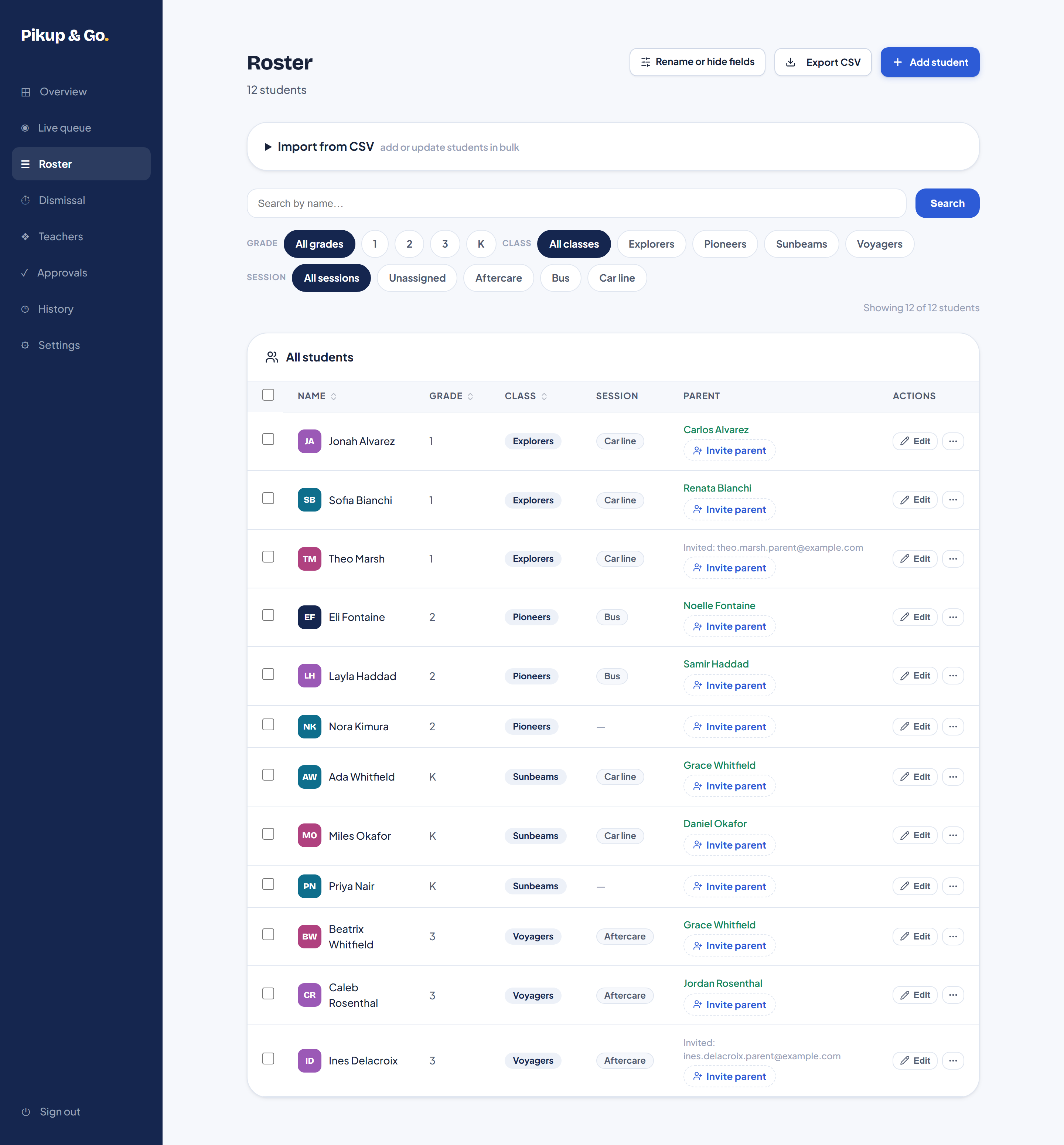
Build your roster
Drop in a CSV — columns are name, grade, class_name, up to two parent emails, and an optional session (separate more than one with a semicolon, e.g. "Chess;Soccer"). Or add a student one at a time from the same page.
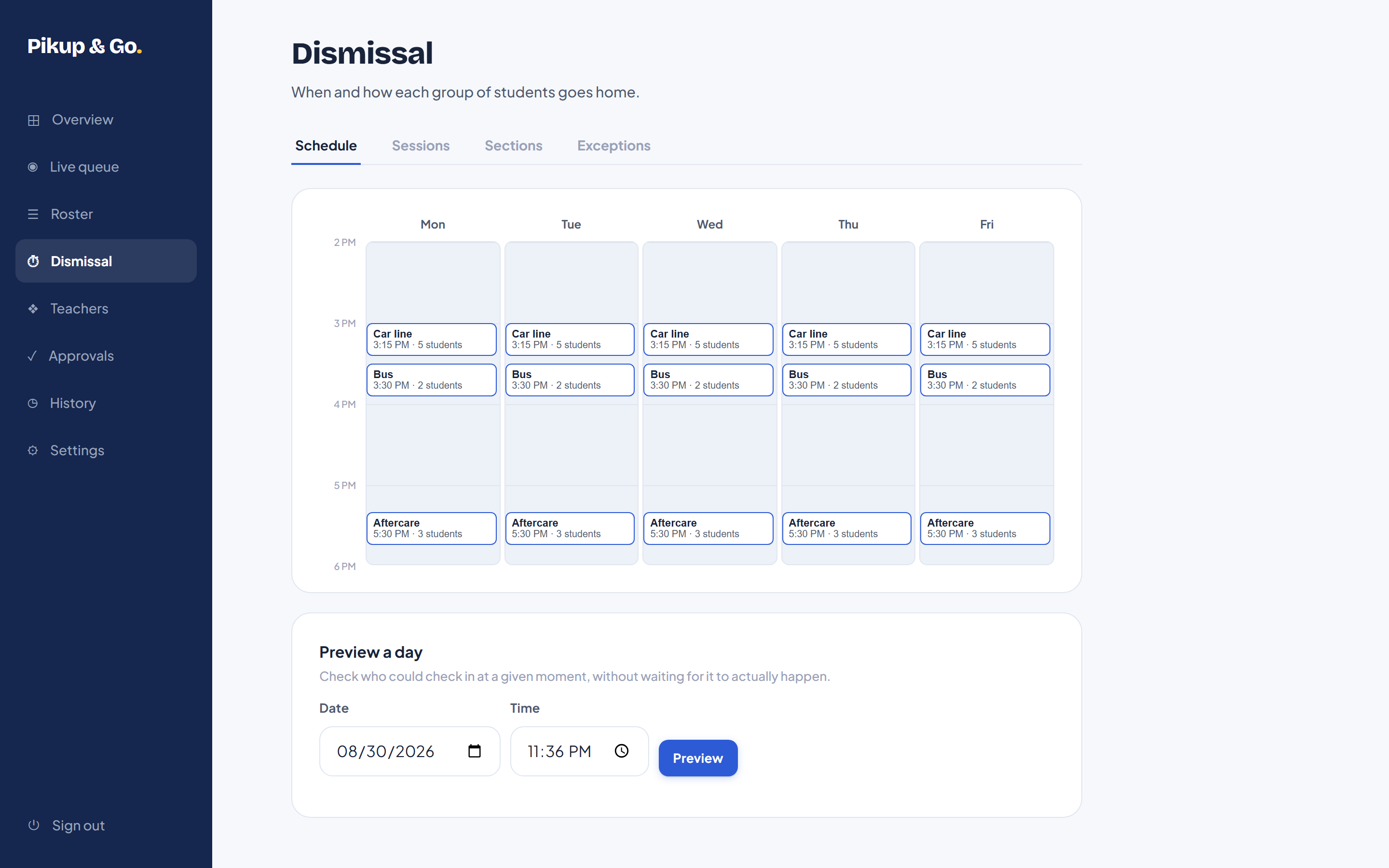
Set dismissal times
Give each pickup group — car line, bus, aftercare, whatever your school runs — its own time and days. A child with no group falls to the catch-all, so nobody is ever silently unconfigured.
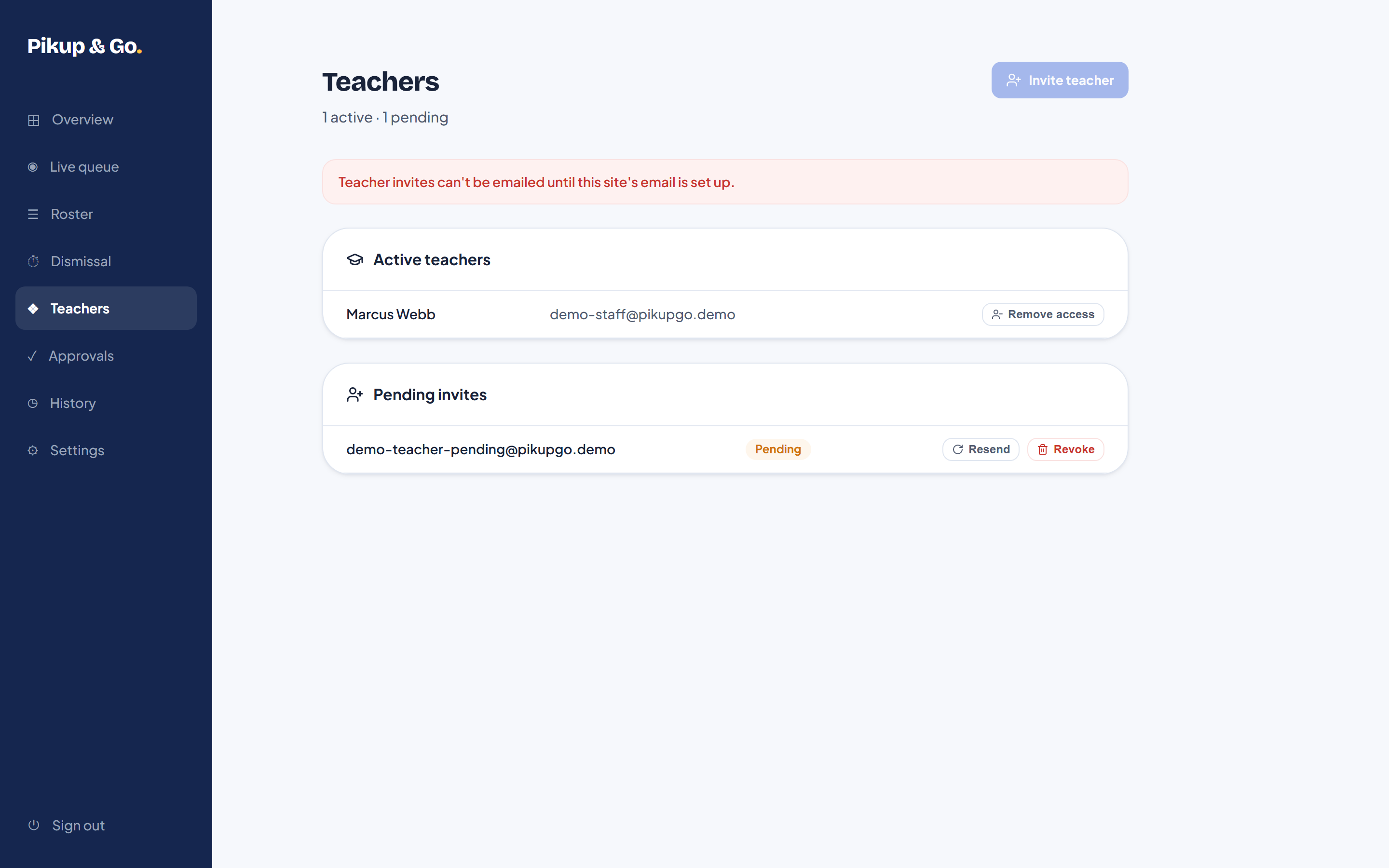
Invite your teachers
Send an email invite. Nothing is granted until they accept it themselves — an invite is an offer, not a membership.
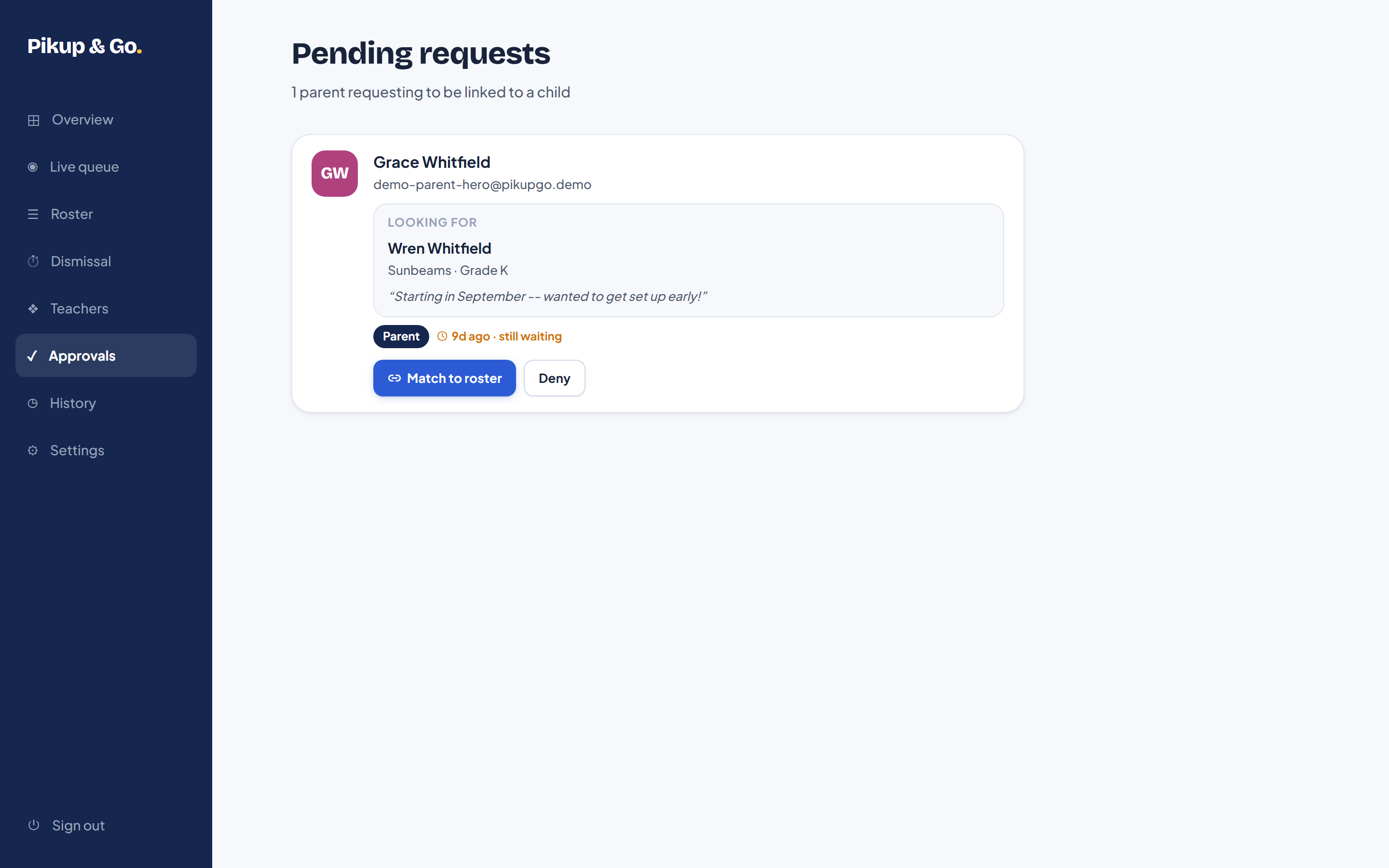
Approve parent claims
If a parent joins before you've entered their child, their request lands here — match it to the right roster row, or dismiss it.
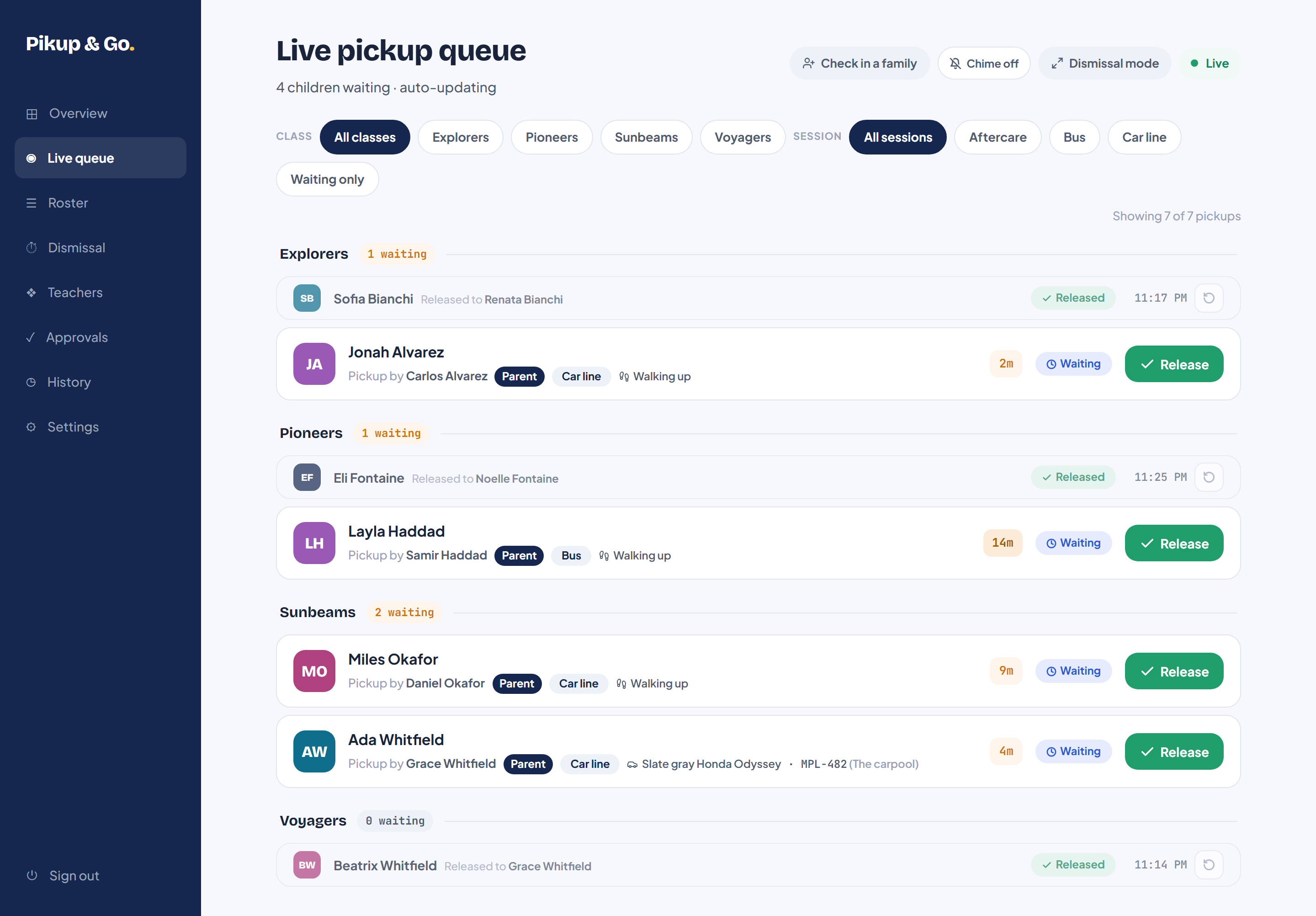
Watch the live queue
Every "I'm Here" shows up here in real time, grouped by class. Filter by session or status, and release with one tap.
Look back anytime
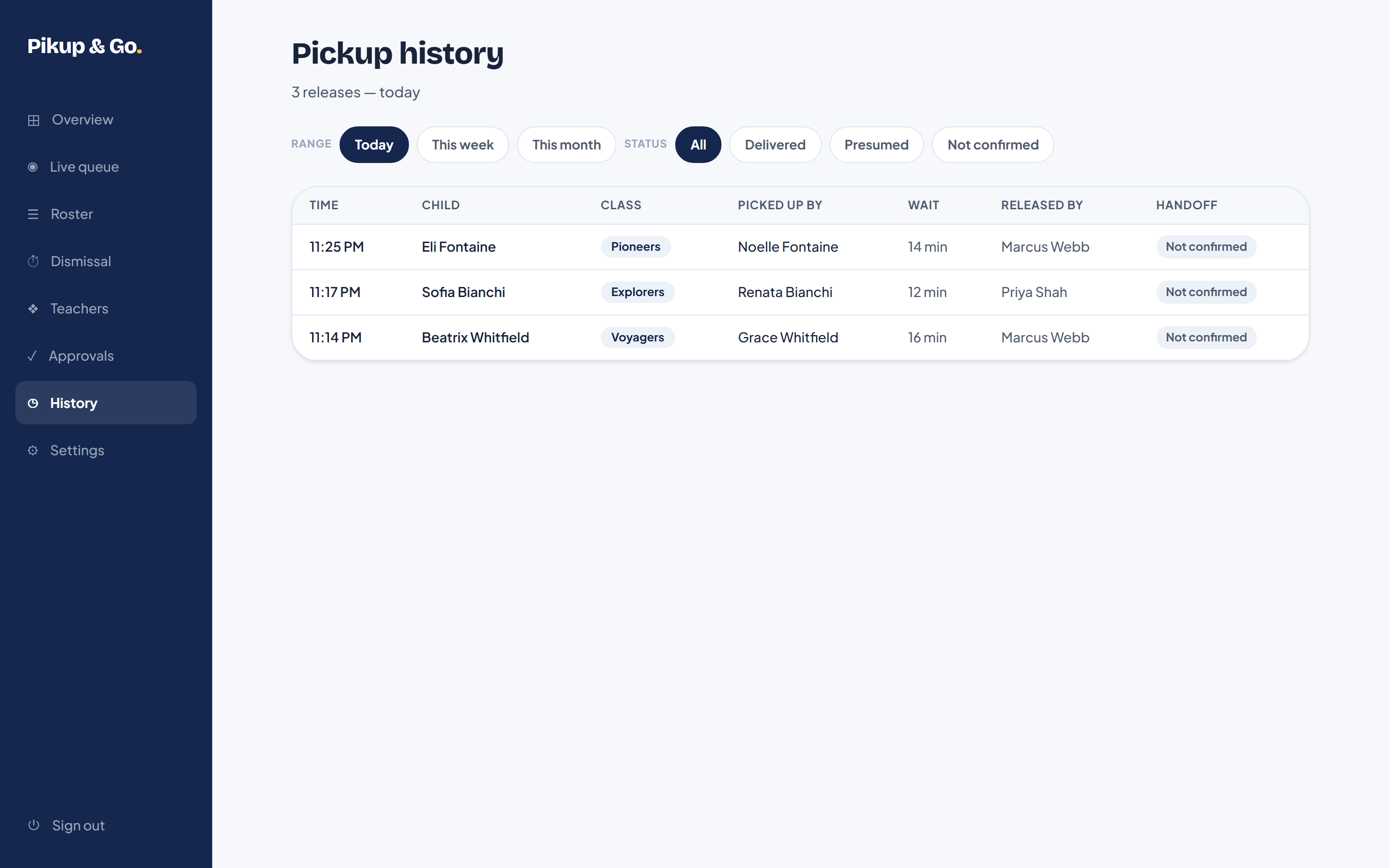
Every release is on record — who, released to whom, by which staff member, and when. Filter by today, this week, or this month.
Settings that matter
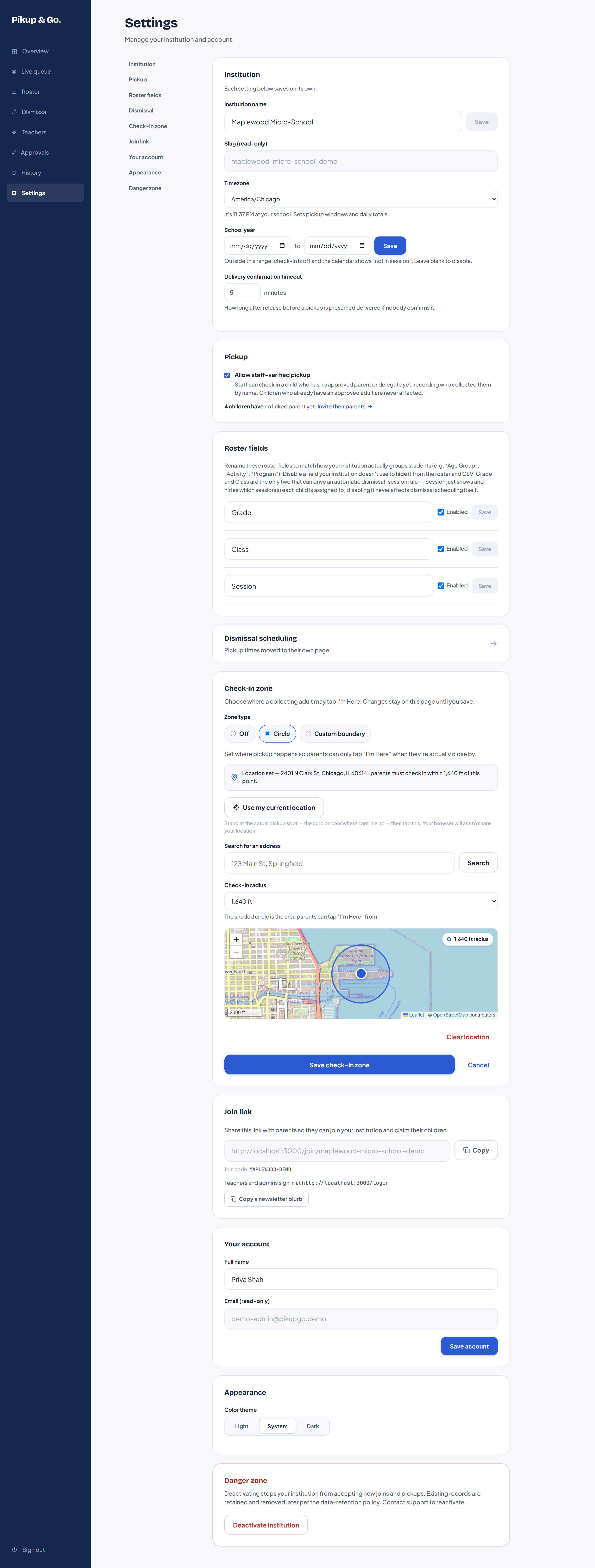
Your parent join link and join code live here, alongside timezone and the pickup location that gates "I'm Here" by distance.
For parents
From the car line to a confirmation.
Everything below happens on the phone you already carry. There's nothing to install from an app store. After you join with your school's link, next time is pikupandgo.app/login.
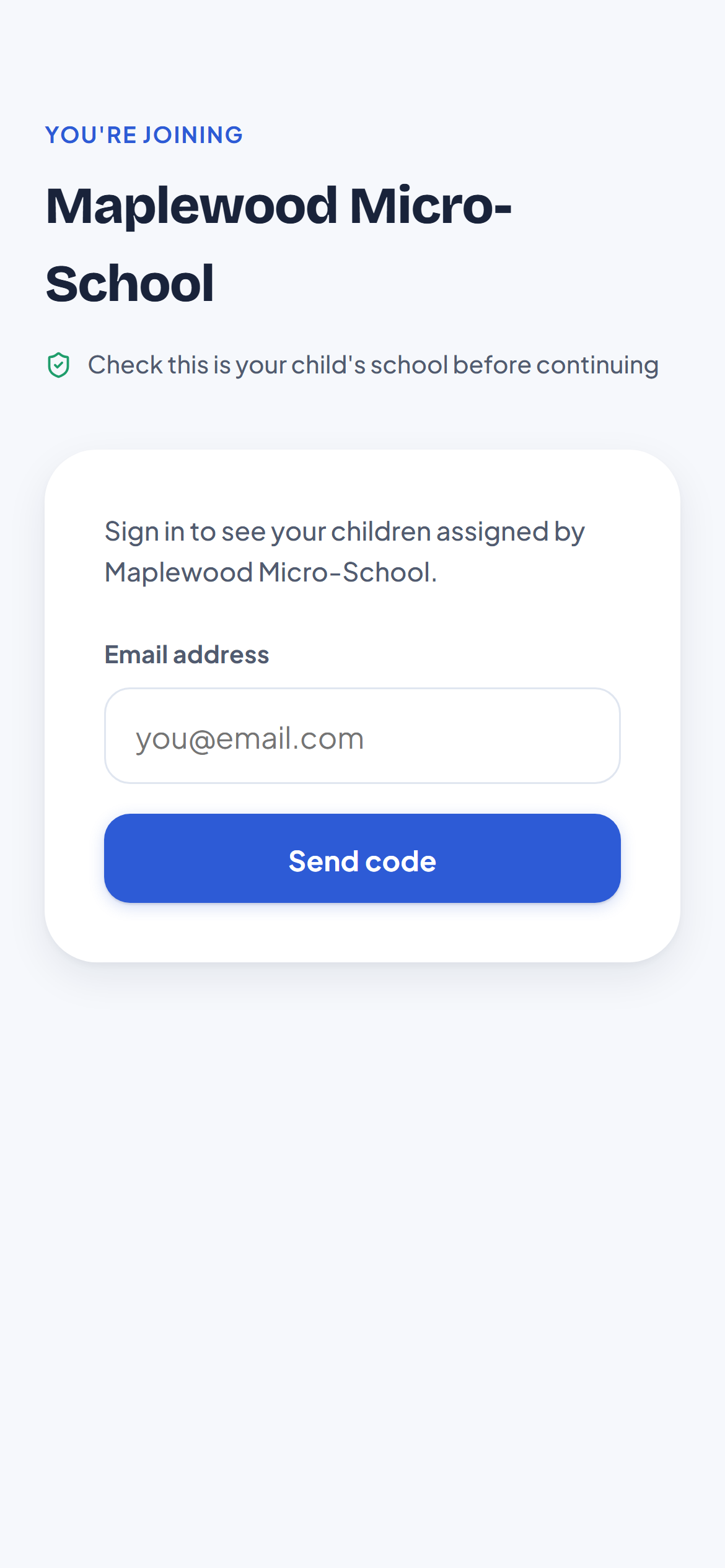
Join with your school's link
No app-store search and no separate parent signup — tap the link your school sends, sign in with a one-time code, and your children appear automatically once the school has added them.
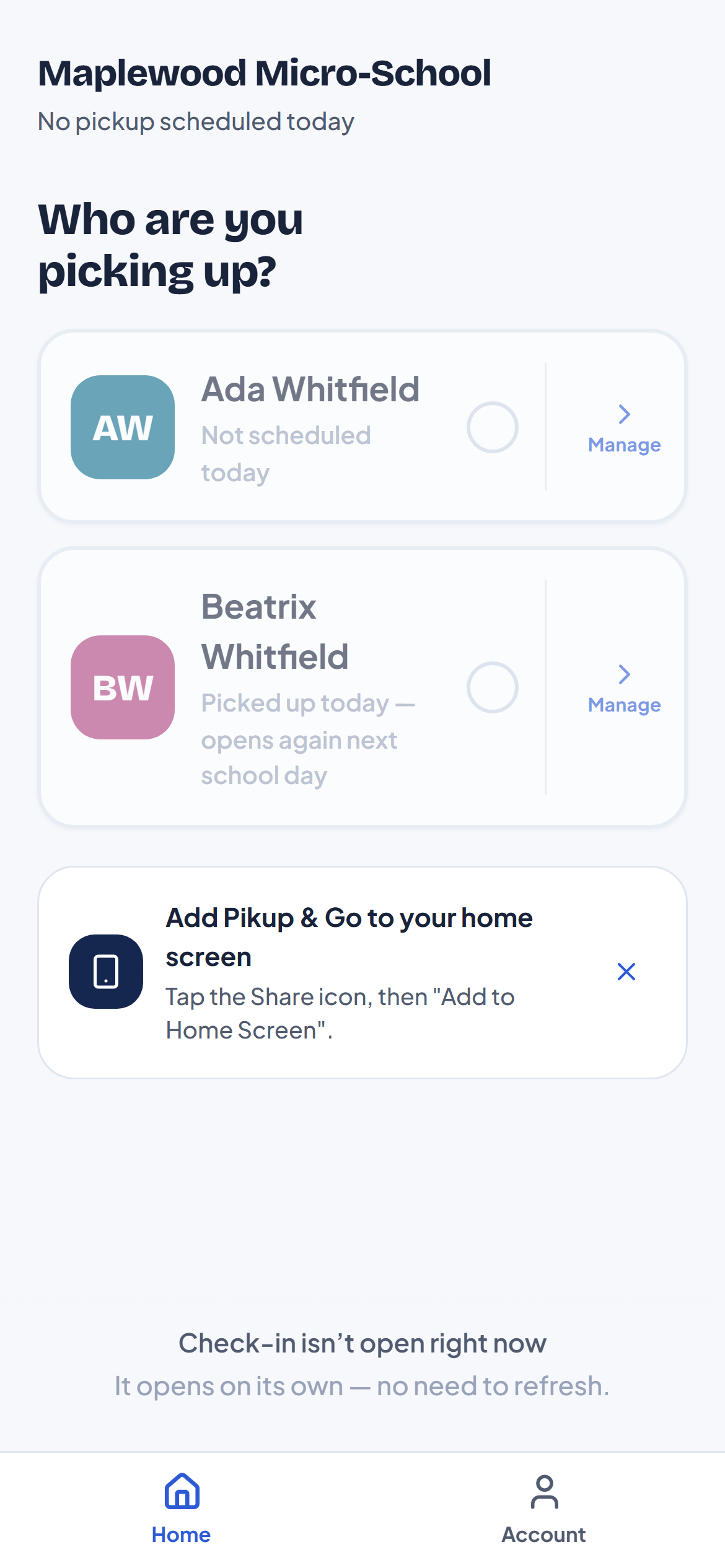
Tap "I'm Here"
The button only unlocks once you're actually close to the pickup point — not from the highway, not from home. Picking up more than one child? Select all of them at once.
Wait for the all-clear
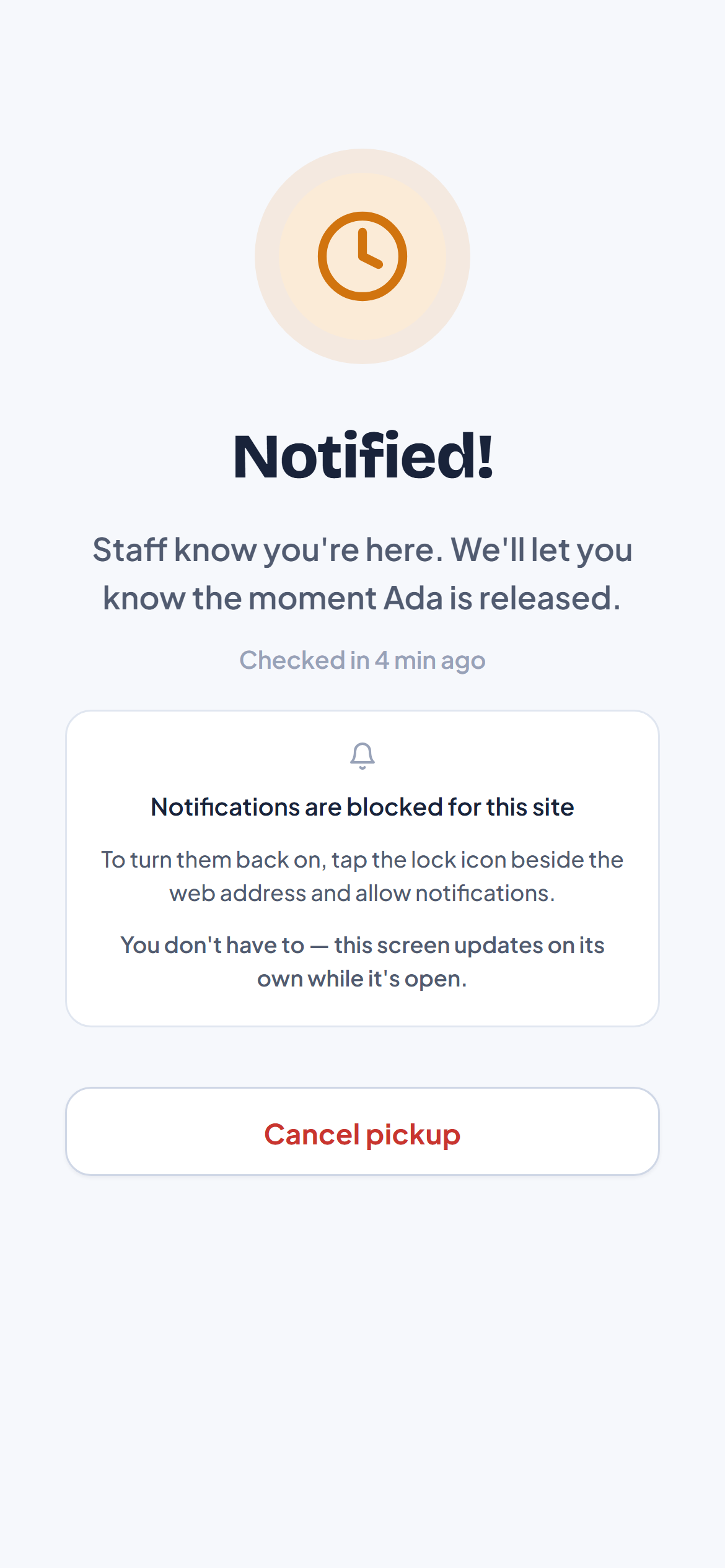
You'll see "Notified" the moment staff know you've arrived, and get pushed a notification the second your child is actually released — no need to keep the app open.
Drive off
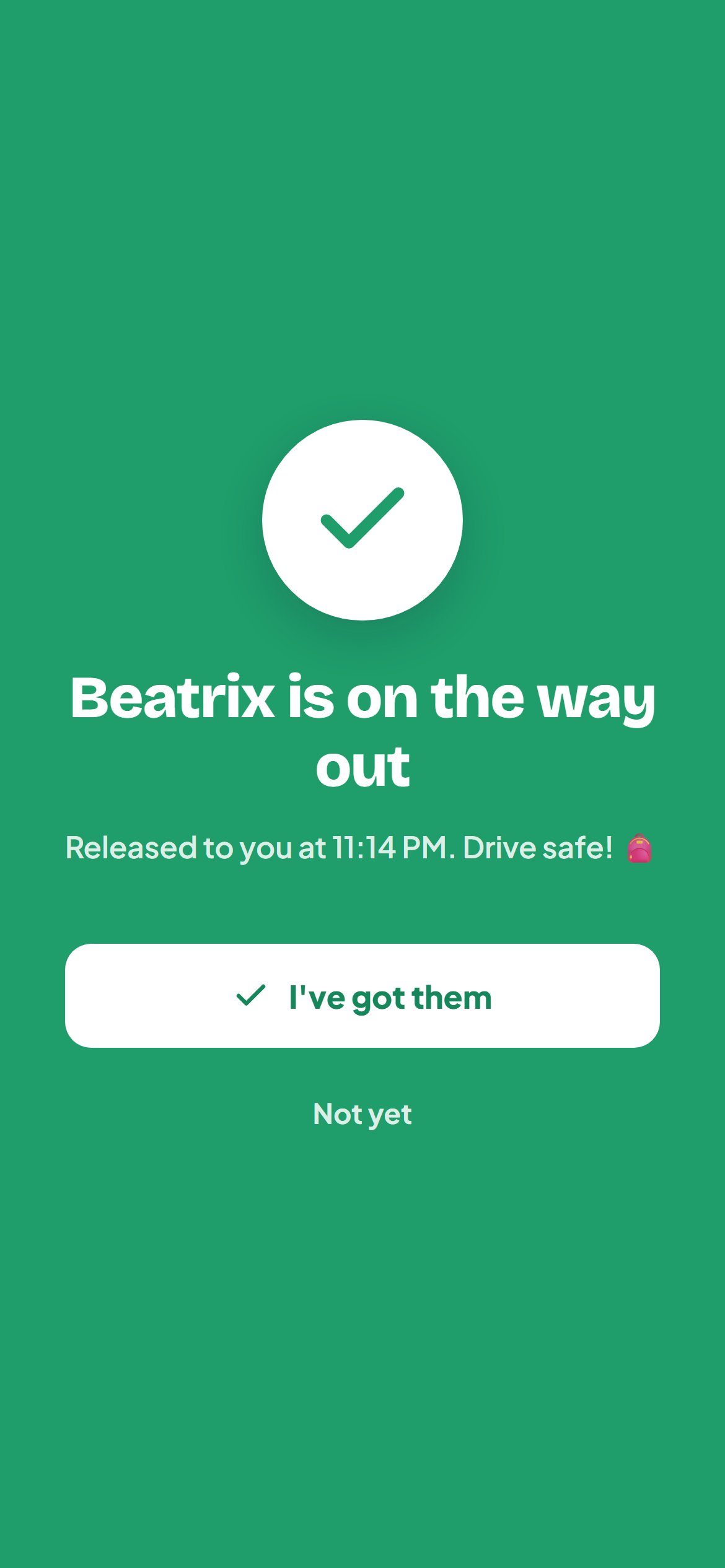
A green confirmation with the exact time — proof the handoff happened, not just that you tapped a button.
Save your car
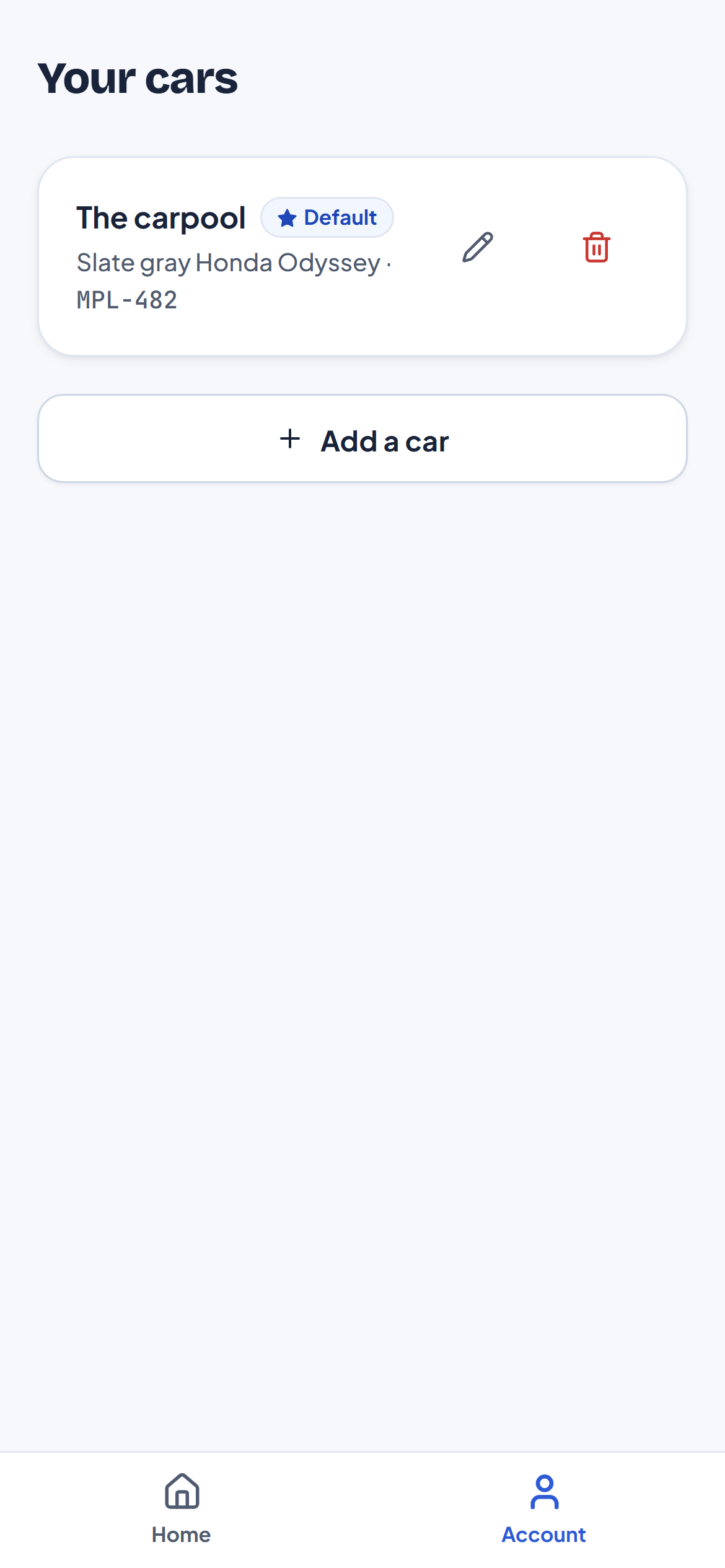
Add your vehicle once — make, model, color, plate — so staff can spot you in the line without guessing.
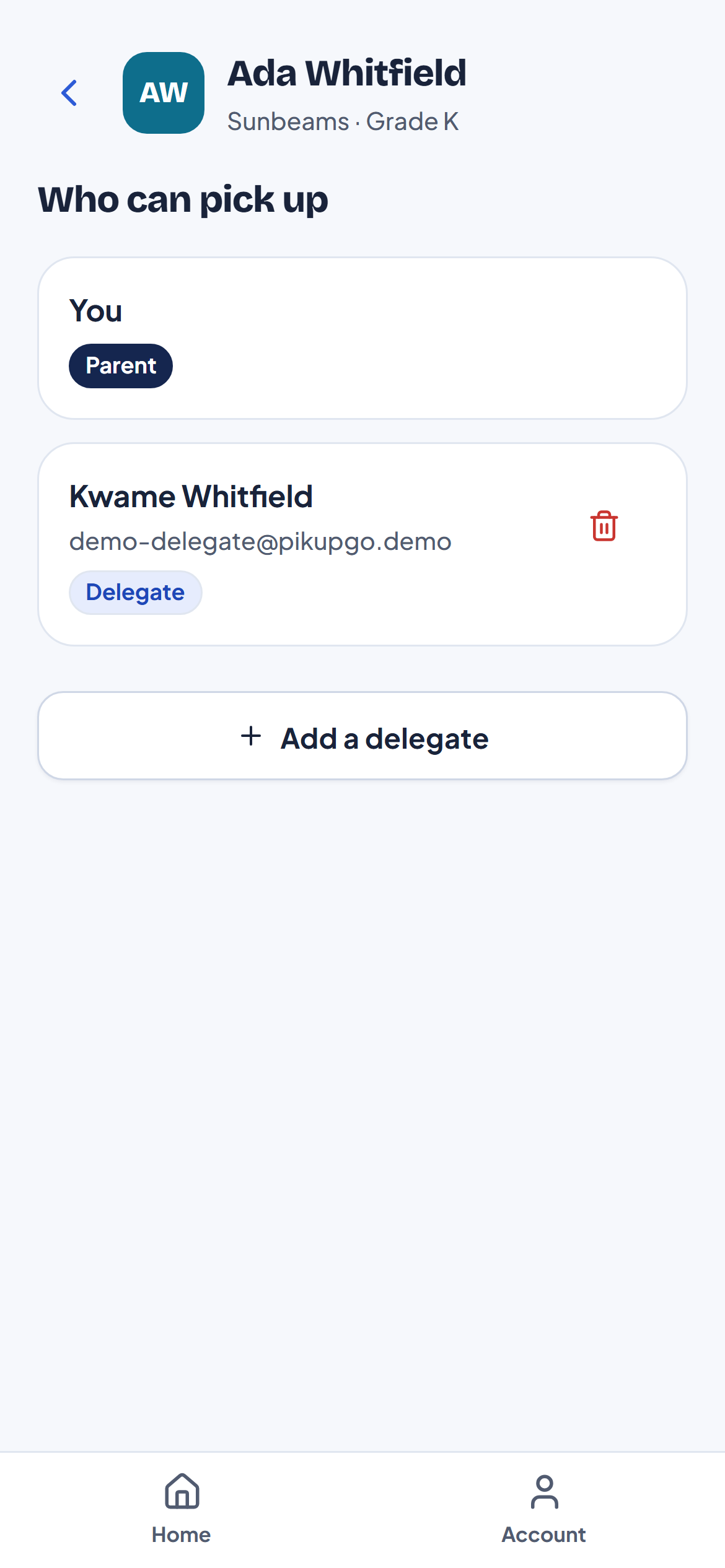
Add a delegate
"Grandma picks up on Tuesdays" — authorize a named adult per child from their profile, and revoke access the moment plans change. Nobody else can collect that child.
For attendants
Running the line on your phone.
Whoever walks children out to cars — the queue is built to be read and acted on with one hand, standing up.
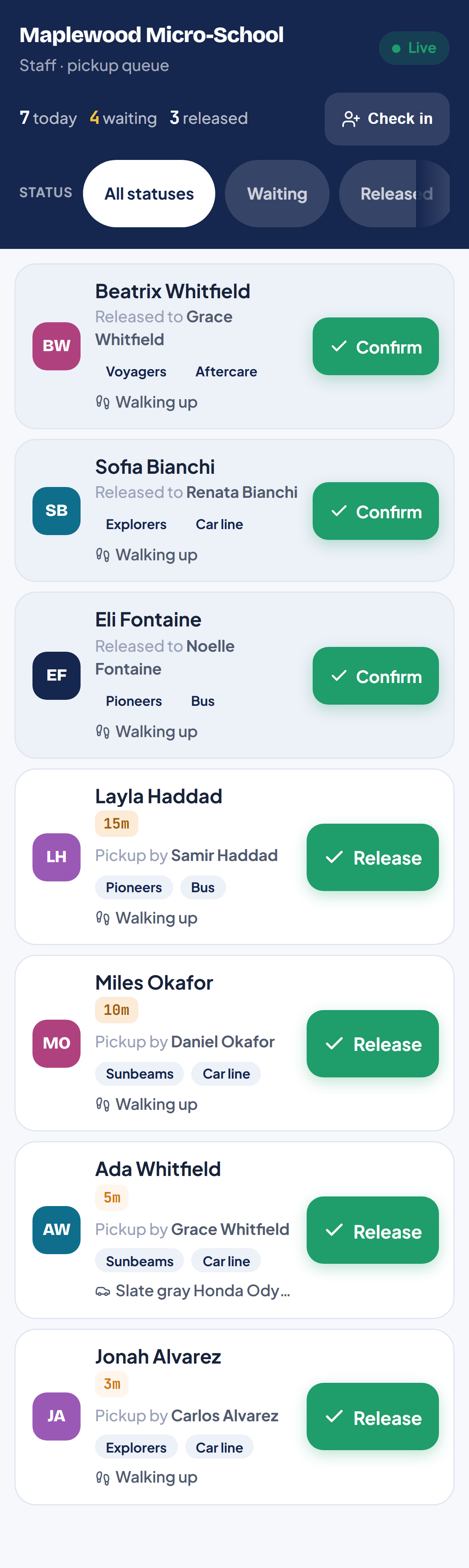
See who's waiting
The condensed queue is built for a phone in one hand. Filter by status, class, or session, or check a family in manually if they call ahead instead of tapping the app.
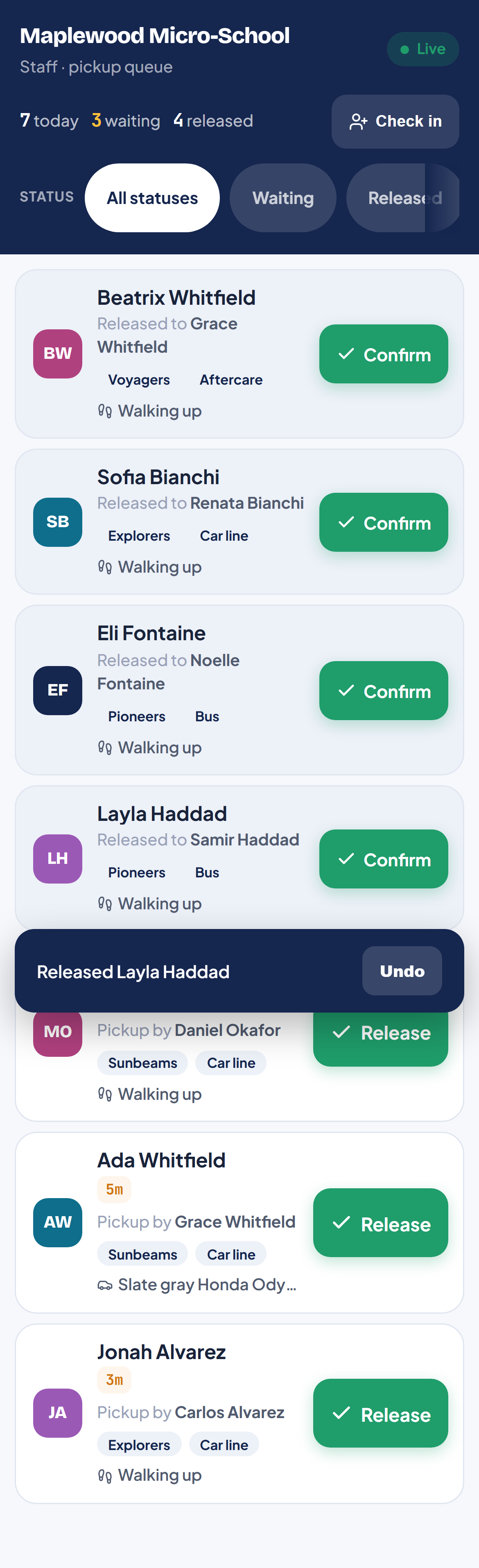
Release with one tap
Confirm the handoff and the parent is notified that same second. Tapped the wrong child? Undo is right there in the confirmation banner.
For teachers
Staying in the loop.
Invited by your school's admin, not self-serve — here's what accepting actually does. After you accept, pikupandgo.app/login opens the live queue.
Accept your invite
An admin invites you by email. Nothing changes about your account until you accept — and accepting is what actually grants access, not the invite itself.
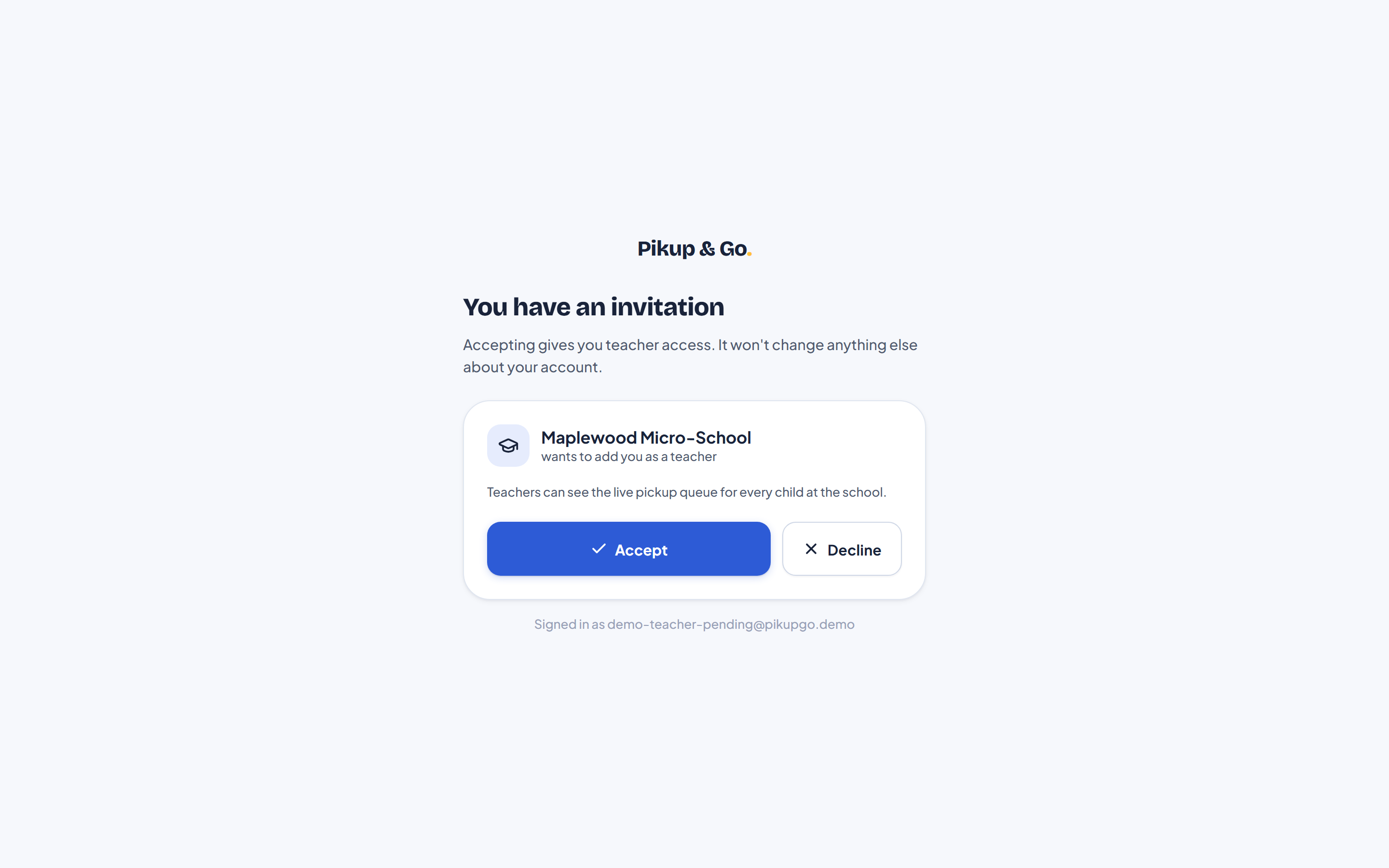
What accepting gets you
You're added the same way an attendant is — the live pickup queue for every child at the school, and the ability to release them. There's no separate read-only tier: teacher access is staff access, so only accept an invite from a school you actually work for.